Showing posts with label How to tips. Show all posts

Tuesday, 4 October 2016

How To Convert Video to Audio Using VLC Media Player

How To convert Video to Audio Using VLC Media Player
Vlc media player is the most and popular media player and you probably use it as your primary media player. As it supports a lot of video as well as audio formats. But today we will talk about it's extra functions apart from playing video and audio.

Apart begin a video player, VLC can convert video to audio very easily and perfectly. Also it support a lot of other functions, such as screen recording, video format conversion, video to audio and lot more. This video payer was created by a group of students at Ecole Central Paris under their college project and was designed for serving videos from satellites at the campus. Now this player is developed by contributors worldwide and is Coordinated by Video Lan.

How To convert Video to Audio in VLC 

To convert video files into audio first open VLC Media player and then Press "ctrl+r" Or Go to "Media" tab and click on "Convert/Save"
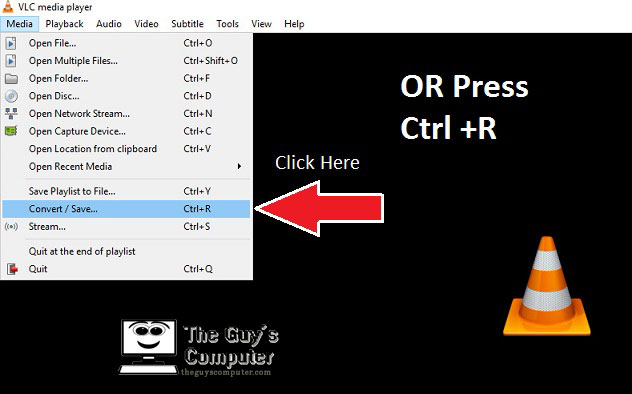
How to convert Video to Audio using VLC media player


Now another window will open in which you need to add your video file which you want to convert into audio file. Now Click on "Add" and select your video file and click Open. 
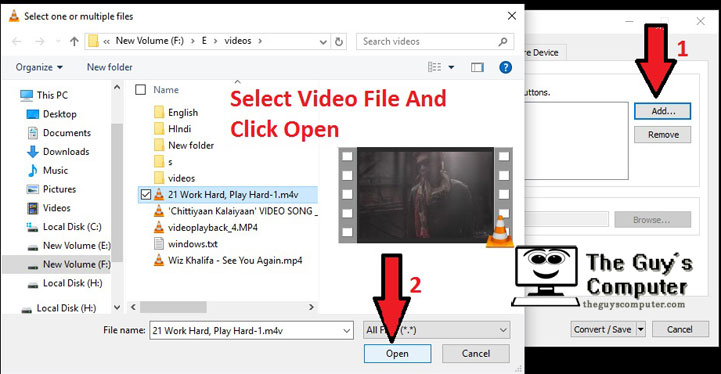
How to convert video to audio using VLC Media Player (Step 2)


Now click on Next. Now in the new window under the setting, you need to change the Profile and Choose Audio - MP3 from that drop down menu. And after that click on Setting icon right to it.
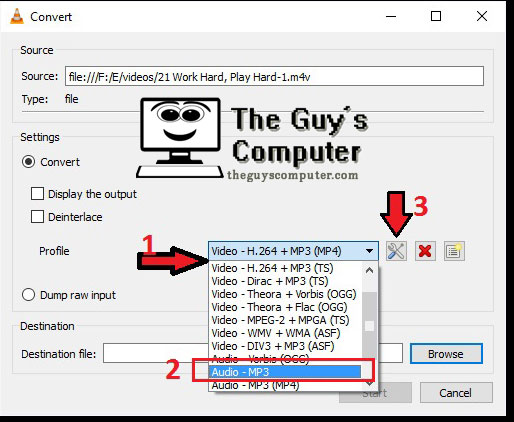
How to convert Video to Audio Using Vlc media player ( Step 3)  

Now Under Encapsulation tab make sure that the check mark must be on MP3. After that click on "Audio Codec" tab. Now check mark the "Keep original audio track" or if you want a low quality audio then  un-check "Keep original audio track" option and then you can change the Codec, Bit-rate channels or Sample rate. However you can change the bit-rate to 64 Kb/s to get a low quality and small sized audio file. But I will recommend not to do that.
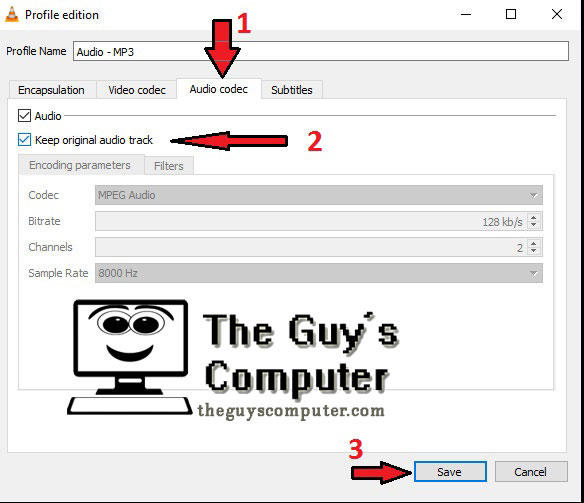
How to convert Video to Audio using VLC Media Player (Step 4)


Now press Save. And now choose the output destination where you want to save your audio file by clicking on Browse. 
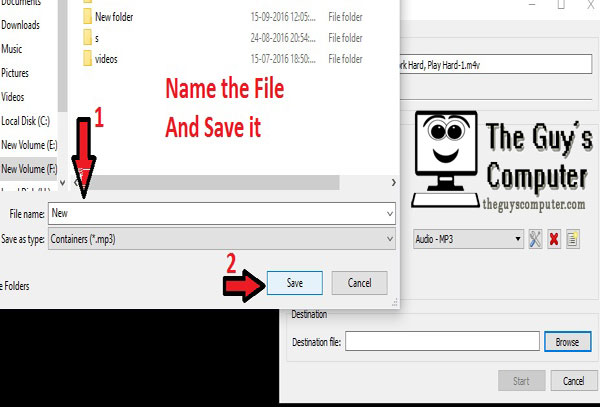
How to convert Video to Audio Using Vlc Meda player (Step 5)


And as soon as you will name the file and press save then click on Start. After Few Seconds you will get the audio from the video. 
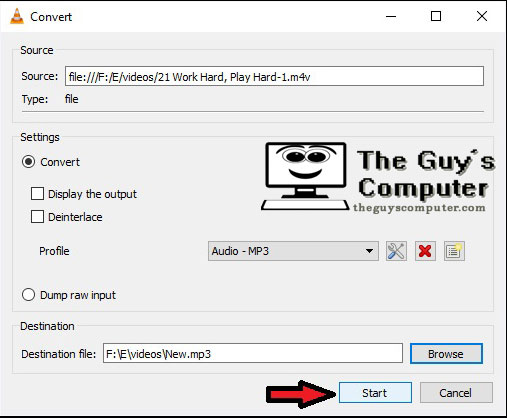
How to convert Video to Audio using VLC Media Player (Step 6)


More VLC Functions

Other than Video to audio conversion, VLC media player can do other things like conversion of mp4 video to flv and various other formats. 

To convert a video format into other,you have to follow same above steps but in profile you need to select the video Profile.

VLC Media player can record your Screen 

If you want to record a part of your screen, then all you need is VLC media player installed. To record your screen follow these steps.

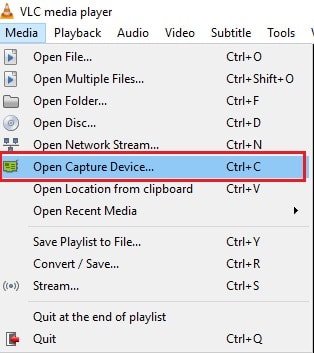
Press "Ctrl +C" to open device capture.
How to Capture Screen Using VLC Media Player


Now change the "Capture Mode" to "Desktop". Now you can select the frame rate. Higher frame rate will capture high responses and fast movement of mouse and other actions. Now click on "Play"
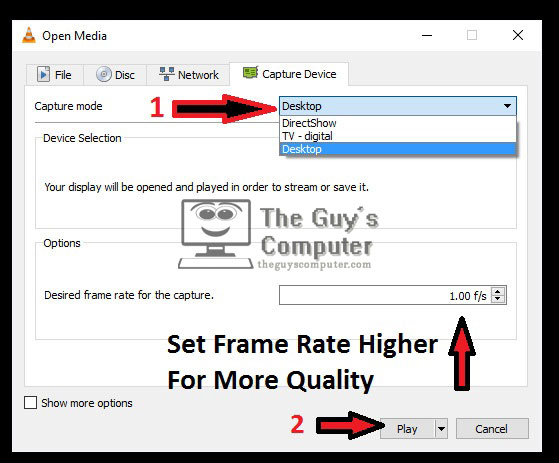
How to Capture Screen using VLC


But right now it has started playing your desktop. Now to Record click on the "Playback" tab and from that menu select "Record".
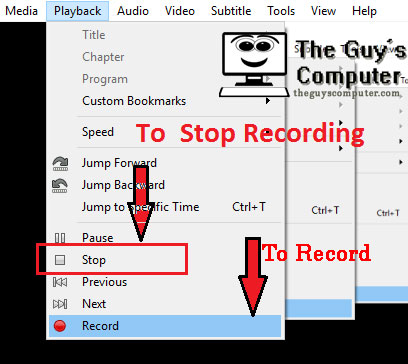
How to record screen using VLC media Player

Now VLC player will record every things on your desktop. And to Stop recording press Stop. And the recorded file will save into "Videos" folder.

Now the saved file will be in videos folder But it's too big you need to convert it to make it small. And VLC is capable of converting 1 GB file into few MB. 


How cool is that! 

Take Snap Shots With VLC Media Player


You have been recording your awesome moments and now you want to share those moments with the world, but the video File is large enough and a time taking task. So the idea about the stills, is the best !


But where to find stills from ? 

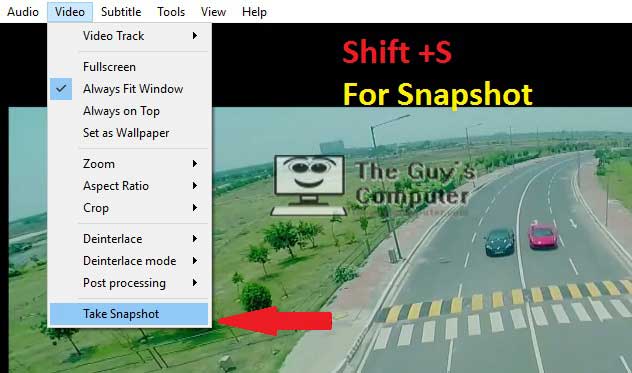
So now VLC is saviour that can take snapshot from your captured video. To get snapshot click on "Video" tab from the menu bar and you will find there "Take a Snapshot" or you can try Shortcut key "Shift +S". And you will find the snapshot in Pictures.
How to capture snapshot using VLC media player

Final Verdict About Video To Audio Conversion Using VLC

Finally we have learned to convert video to audio using vlc media player. With this we also have learned a lot about VLC media player capabilities. 

It's a nice software which can do simple tasks. But For hardcore things there are dedicated software. 

So if you are thinking to use VLC for simple purpose rather than just video watching then it's fine. 

Now start converting your videos to audio by vlc and if you have found more cool functions of VLC then share with us and keep exploring.
Thursday, 22 September 2016

How To Share An Internet Connection

How To share an internet connection
So if you are wondering to share your internet connection with your friends or your other devices then you can do it easily without any prior knowledge regarding networking. After we had learned how to create a hotspot in our previous article, now it's time to share the internet connection from that hotspot.


How To Share An Internet Connection 

Before sharing your internet connection first, make sure that from which device you are  connected to the internet on your PC. It can be your Ethernet connection, Wifi or any USB modem. 

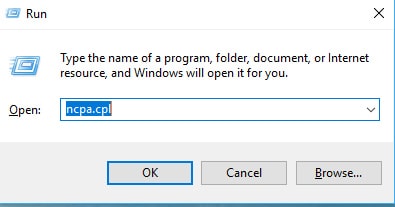
Now press "Windows key + R" and type "ncpa.cpl". It will open network connections. 
Step 1 How to share an internet connection  


Now "right-click" on the network adapter, that is connected to the internet. It can be your wireless adapter, ethernet adapter or any other USB modem. And from the drop-down menu, click on "Properties".
How To share an Internet connection (Step 2) 

Now select "Properties" and then click on "Sharing" tab. And now after that check the "Allow other users to connect through this computer's internet connection." And if you have more than one other network connections, then you need to select the connection on which you want to share your internet connection. Now click apply to make changes.
How to share an internet connection (Step 3)


You can also use different software for sharing Internet connection. Such softwares are used to convert your computer into a portable hotspot. Also, you can convert your laptop into a hotspot easily without any software.

This method works well with every version of windows such as windows 7,8 and Windows 10. 

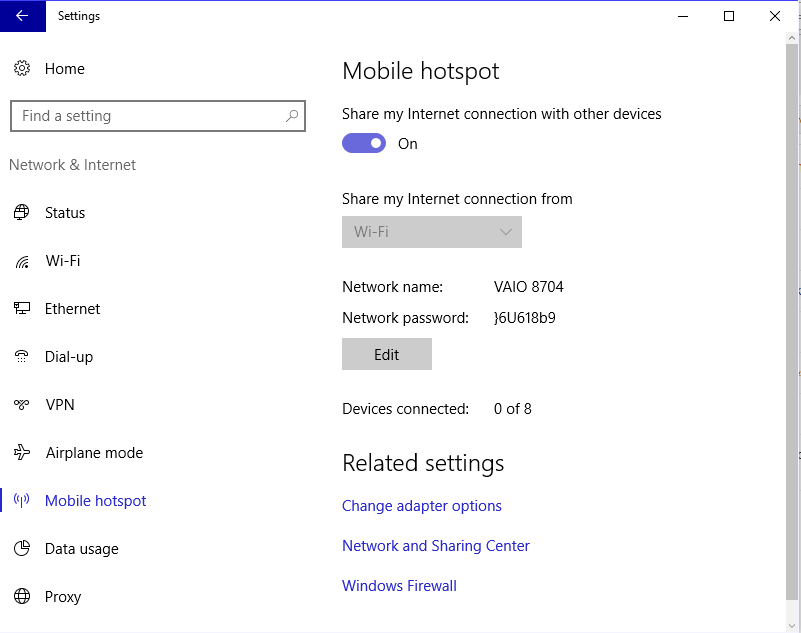
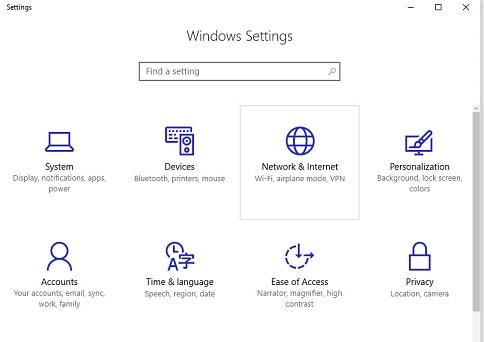
And if you have go Windows 10 Anniversary Update then go Setting by pressing "windows key +i" and after that click on "Network and Internet" and you will find "Mobile Hotspot" and you just need to turn it on and also turn on "Share my internet connection with other devices".

How to share an internet connection ( Step 4)


How To share an Internet Connection From your Cellphone 

Now first decide where you want to share internet from your cellphone. It you want to use your android cellphone internet on your PC then connect a data cable first. 

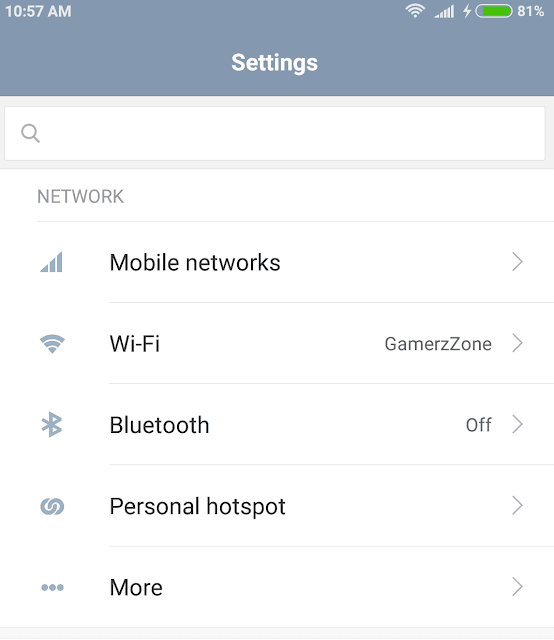
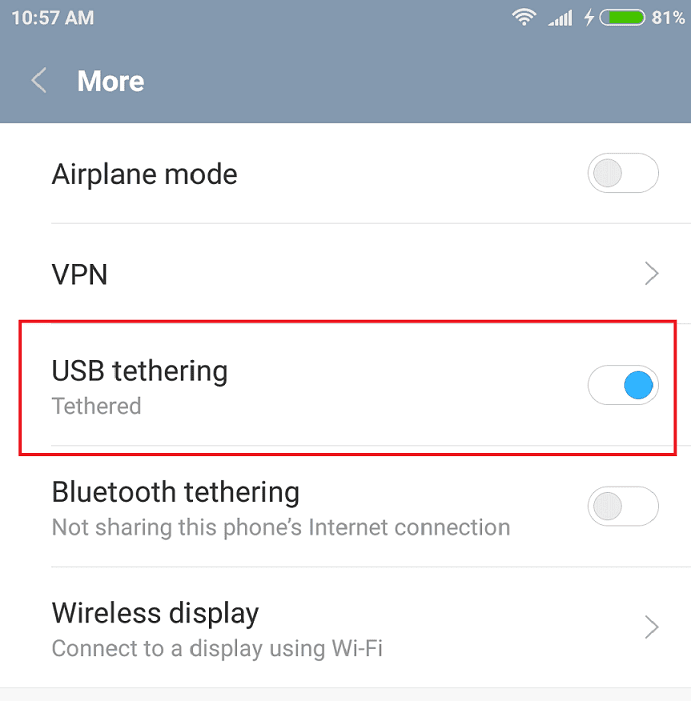
Now go to "Settings" and click on "more"
How to share an internet connection from Phone (Step 1)


Now in a new window, you will find "USB Tethering". Turn it on. And that's all your cellphone's internet is now being shared with your Computer.
How to share an internet connection from phone (Step 2)


And if you want to share your Cellphone's internet with other wifi devices then you have to create a hotspot. And you can create your own hotspot on cellphone by navigating to settings and after that look for mobile "Hotspot". It is generally inside "More" in settings.


Final words on How to share an Internet connection

Now you have learned to share internet connection from your computer and cellphone. If you are sharing your cell phone's internet connection then first you need to make sure that does your Internet service provider allows sharing your mobile internet. As in some countries generally, ISP charges extra to share your internet connection. And in computers, you must be connected to two networks to enable sharing of internet connection. So if you have any suggestions on how to share an internet connection, then you can let us know.  

Thursday, 15 September 2016

How To Create A WIFI Hotspot in Your PC

So are you thinking about turning your computer into a wifi hotspot? A lot of time situation arrive when there are a lot of people at our home and, they need to use our internet on their own devices and sadly you don't have any router to share your internet connection. So you need to convert your laptop into a wifi hotspot.

Create a WiFi Hotspot in your PC   

How to Create a Wifi hotspot in Your PC
How To Create a WiFi Hotspot In PC

You can turn your laptop into wifi hotspot with few easy steps without using any third party software. Now to create a wifi hotspot you first check the wifi adapter of your Laptop. If it is off, then turn it on. Now after that Follow these steps

Open Command Prompt as an admin and type the following command
" netsh wlan set hostednetwork mode=allow ssid=my home key=1234567890 "  and after that press enter.
Set Up a Hosted network in PC


Now here ssid stands for your network name, you can change it as you desire and key stands for your network password. So your key must be more than 8 characters and must be strong and 1234567890 is definitely not strong. So create a strong Key. 

Now it's time to start that hosted network. To start your hotspot type the command " netsh wlan start hostednetwork" and hit "enter".  Now your laptop had been turned to WiFi hotspot.
Hosted Network Started

Now it's time to share your internet connection with your newly created wifi hotspot.

How to Create a Hotspot in Windows 10 PC (Anniversary Update Required)

So if you are lucky, who have got Windows 10 Anniversary update then windows had made hotspot creation hassle free. 
First click on Setting or use shortcut key "Windows +I" to open settings. 
Windows 10 Anniversary Update Settings

Now after that click on "Network and Internet" 

Turn On Mobile Hotspot To Create a Wifi Hospot in Your PC

Now after that, look for "Mobile Hotspot" from the list on the left side. And click on it. Now turn on "Share my Internet Connection With Other Devices"  and also you can edit the network name and network password just by clicking on "Edit".

And you are ready to Go. Just ask your friend to open WiFi on their devices and enter the password. 


Create a WiFi Hotspot on your PC Using Software 

If you are too lazy to type all those commands, and also you don't have Windows 10 Anniversary Update, then these software might be of your Use.

Connectify Hotspot is used to turn your computer into wifi hotspot and it is a paid software, however you can download it and try it first. It have a lot of cool features including wi-fi repeater mode, which turns your laptop into a wifi repeater, if you already have a wi-fi router then you can extent it's wireless range with connectify hotspot. Also it is easy to use and you can create bridge between your various devices. You can Get Connectify Hotspot and turn your computer into wifi hotspot.


MyPublicWiFi is a free software, which you can use to create a wifi hotspot in your PC and with it you can share your internet connection with all other devices in your room. The best part is that it is free and also you can restrict certain servers on your network by MyPublicWifi. Also with it you can collect log files of visited websites. You can Get MyPublicWifi and convert your PC into wifi Hotspot.

mHotspot is a free software that will create a wifi hotspot in your computer. It can connects maximum upto 10 users to your computer hotspot. It can share any type of internet connection. Also it can work as a repeater. You can also keep an eye on network usage such as transfer rates. And mHotspot works perfectly with windows 7,8 and 10. You can get mHotspot and convert your PC into a Wifi Hotspot. 

Final Words on Creating a WiFi Hotspot 

A wifi hotspot is just not used for sharing internet connection, you can try create a network for playing multiplayer games in your network. And why to buy a router if you just want to share your internet connection with your two or three wireless devices in a single room. But if you are a serious gamer or you have multistory house, then you can go for a router of high power else you can enjoy your internet connection on your other devices by creating a WiFi hotspot in your PC either by commands or some software.

Thursday, 8 September 2016

How to Download Photos From Instagram

A lot of times while surfing Instagram you might found some awesome photo and want to get into your cellphone or computer, then here is how you can download photos from Instagram while using Instagram on your computer or cell phone. 

How To Download Photos From Instagram On PC (2016)

Yesterday, when I was surfing Instagram on My PC then I wanted to download a photo to my computer from Instagram, but when I tried to right click on that image; there was no option of 'save Image as'.

So I found an alternative way to download that photo on my computer. So here were the steps that I followed.

If you want to see all this live in action then here is video version on 'How to download Photos from Instagram', else scroll down.


Open the photograph that you want to download.
Open Photo on your Instagram First on PC
Open the Image on your Instagram First

Now after you opened that photo on your PC,  'Right Click' on the photo and then you will see a menu. Now click 'Inspect' and a code will open on either side of your browser's window.
Click on Inspect  to open code in Instagram
Click on Inspect 
Now a code window will open on either side of your browser with a highlighted code line. Simple press 'delete'. Make sure your image must be highlighted.

Delete the highlighted code in your instagram window
Delete the highlighted code

Now after pressing Delete, move your cursor on the image and right click again. Now a menu with 'Save image as' will appear. Click on it and in a separate window  you will be prompted to save the photo to a certain location. Press save and that's all. You have got your Instagram photo to your computer.
Click on Save image as... To save photo from instagram
Click on Save image as...


How to Download Photos From Instagram on Phone 2016


As the most of the people are using Instagram on their cellphone, it may be android, iOS or any other mobile operation platform so, there is a way to download photos from Instagram on your android phone. Just follow these steps and you will be happy having your favourite photograph on your mobile device.

Now you need two important apps to do this. Of course, you have Instagram and download UC browser.

Now open Instagram app and then on the top right of instagram photo you will see three dots. Click on then and there will be a menu in front of you. Now select 'Copy Share URL'.
Press Copy Share URL in Instagram
Press Copy Share URL

Now after that, it's time to open UC Browser. Now tap on the address bar of UC browser for more than 2 seconds and a menu will appear. Select 'Paste and Go.'
On UC Browser select Paste and Go to open instagram photo
On UC Browser select Paste and Go 

 Now after the Photo from Instagram will load in your UC browser, tap on the image and you will find 'Save Image'  and that's all click on it and photo is on your Cellphone now. 

So Are you Lazy of this hassle for getting Instagram image ?


So if you are Lazy  or you are unable to find 'Copy Share URL' then the simplest way to Download photos from Instagram is to take a Screenshot on your Instagram app and then after that edit and that's all, you have got your Photograph. Now if you found this article useful then don't forget to share it with your friends on your social network.

Friday, 19 August 2016

How To Bypass Annoying Surveys Online 2016 for FREE

Latest and Best Survey Remover tools of 2016 for Free. 
How To Bypass surveys online 2016
How many times you had found your best download , and then a screen pops up ' Please Fill In This Survey To Continue To Downloads' and at that moment it feels like just break the computer and shouting loud.  And then we start searching for how to bypass those surveys, as we just want that info or data. And you will be amazed that there are some Free Online tools that will bypass those online surveys for you in 2016.

Do you Know Why These Surveys Occurs ? 

These surveys pops out because the website owners as like me wanted Money. Who doesn't love money ! Don't You ? Even they are earning a lot from traffic but still a little more will be good. So the best and easy way to earn money on your website is displaying those surveys and the website owners are paid for each completed surveys. 

Sometime you get lucky and have an option to get rid of that survey but for most of the time that little saviour option is not there so it becomes very very important to bypass surveys online in 2016.

What's your Browsing Experience When These Surveys Comes In ?

Uhhh! I become angry when these surveys waste my time. These surveys not only waste your time, but they are so annoying and always asks to fill a form, or to buy a product which have no scope and some of the people do believe on those offers like ' iPhone for Rupee 500' and pays them thus by making their loss. 

So here are some methods which can bypass those annoying surveys online in 2016 and you can try them for Free.

Best Free Online Survey Bypass Tool

Survey Bypass

Survey Bypass is the best  free tool of 2016. It is very easy to use, first you just need to give the url or website link to survey bypass and it will scan the website and it gives a lot of options of encrypting pages, encrypting url, allowing cookies and also it removes scripts and objects so as to unlock the downloads. Also with survey bypass you can report those websites which consists of these surveys and then they will find a way to break those surveys and that's why this website is the best survey bypass tool of 2016.
   

Survey Smasher 

Survey Smasher is another website to bypass online surveys in 2016. It have a very friendly user interface and that's why it is easy to use survey smasher. This website convert all links to one link without any registration.  And you can upload files to mediafire and enjoy unlimited downloads without any registration.


Survey Remover

Survey Remover is another tool to bypass online surveys and the speciality of this software is that you can download locked files and then can get access to your required files easily.


Software to Bypass Surveys 

Sharecash Survey Killer 

This is the best survey killing software of 2016 which are organised by sharecash. Now to bypass surveys just follow these steps.

  1. Download ShareCash first.  
  2. Now after that install Survey Cash
  3. Now Run the App Survey Cash
  4. Enter the File Location , that you want to download.
  5. Click on Download.
  6. And then Save it.
In this way you can easily bypass the survey. 

Survey Remover Tool 

This is the survey remover tool of 2016 which completes the task by blocking the websites that contains surveys thus by saving your time on those annoying forms. This tool is absolutely free and you can download it from  Survey Remover Tool's website.


Bypass Surveys With Browser Extensions

So why the hassle of visiting websites for removing surveys if your browser can do it for your itself. It will just block all those bad websites which have those survey traps for you. The extensions will detect those scripts and will block them.

XJZ Survey Bypasser  For Google Chrome  

This extension detects and block all those websites which contains survey. You can download this extension on your google chrome browser by the chrome web store

Redirect Bypasser Add-on for Mozilla Firefox

As like in google chrome's xjz survey bypasser, here in Mozilla Firefox redirect bypasser exists. It's an extension which also detects and block the websites containing surveys. So if you are a Mozilla Firefox user then you can download it from Mozilla Addon Store.

Are These Online Surveys Bypassing Techniques Works in 2016 ?

This is very interesting Question.  Sometimes yes and sometime no. As these online survey removal tool also needs input and they receive it when people reports about the websites containing surveys. 

The developers do their research and then we are told about that. And most of the tricks on how to bypass surveys does work in 2016 and these all tools are free to use and will sure prevent your time and money from wasting. 

So if you like this article on how to bypass surveys online 2016, then you can share it with your friends on Facebook, Twitter and other social websites. Also you can share your experience with us.   

Tuesday, 16 August 2016

How to pay BSNL wimax Bill Online ( Pay Landline /GSM /CDMA bsnl bill online)

how to pay bsnl wimax bill online
How to pay BSNL wimax Bill Online ( Pay Landline /GSM /CDMA bsnl bill online)If you are a BSNL wimax user and making BSNL bill payment online for the first time then here is how you can pay BSNL wimax bill online and not only wimax, you can pay landline, gsm, cdma bill online through bsnl portal easily.

How to pay BSNL wimax Bill Online

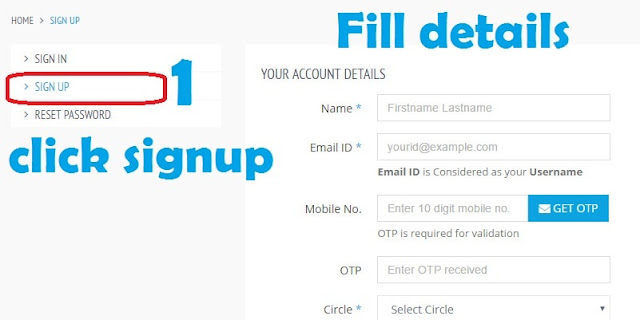
Now to pay wimax online bill you first need to signup to bsnl portal and create an account for bill payment. For signup you need an email account, a working phone number ( BSNL number will be best) for verification and notifications of bsnl bill online payment. And you also need to fill your BSNL Circle(mostly your State name). And after that just create a password. 
Signup On Bsnl Portal For Bill payment online
Now After signup and verification of your phone number, you can now login to your bsnl portal to add services. 

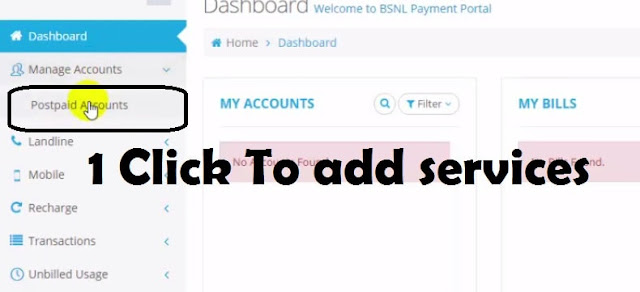
Now after logging in you will see two columns named as 'My accounts' 'My Bills'  stating no bills found. Now you need to add account for that first on the left side under Manage Accounts, click on 'Postpaid Accounts' . From here you can add Wimax , gsm , cdma and other services which you are using and wanted to pay bill.
Click to Add wimax Service for online bill payment


Select bsnl Wimax for wimax bill online payNow Manage Account page will open and then click on 'services' tab and there a Drop down menu will open. From that menu you need to select Wimax or you other service for which you want to make a bill payment online.  


Wimax online bill Now after that you will see 'Wimax-ID' , 'Account number', 'Nick name'. You will get these all information from your e-bill or your paper bill. Wimax-ID refers to user name which is like 'UB10xxxxxx@bsnl.in' but just copy only first 10 digits of username and leave @bsnl.in part and put it on Wimax-ID portion and 'account number' will be there in your bill. And after that put a nick name where it is asked and click on submit. 
Pay now option for making bsnl bill online payment
Now click on 'Dashboard' and you will see there your linked wimax account. Under 'My Bills' section you will see your wimax id and as soon as you will click on that, a pay now slider will originate and after clicking on it you will be redirected to online payment page.


Making Payment For BSNL wimax Bill online

Now you are redirected for making payment. Now there are a lot of options for making payment such as netbanking, credit card, debit cards and other payment method. If you have online banking activated then you can use net-banking and you will be asked to select your bank. But as every one doesn't have net banking enabled so Debit card is more easy option for paying. So select 'debit card' and then you need to check the brand of Debit card which will be written on bottom of card. Debit card Brands ( How to pay bsnl wimax bill online)


After selecting appropriate brand of your card, you will asked to select payment gateway. You can select any one of them. After selecting these, click on continue to payment and you will be redirected to page where your debit card details will be asked for bsnl bill online payment. 
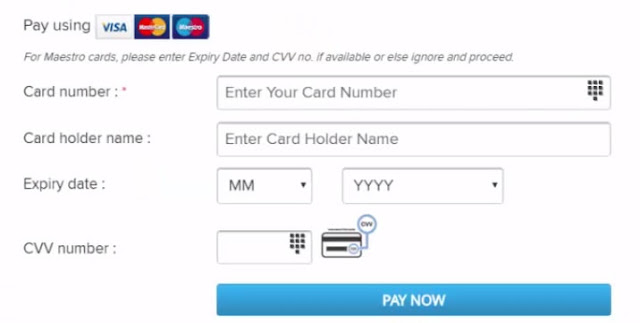
Card Details Required for paying bsnl bill online
Debit Card details Required For bill payment


Now fill all these details like card number is of 14 - 20 digits so put it there on 'card number', on card holder name put your name or the bank account holder name after that check for the expiry date on card. You will find card expiry date in front ( 2/24) and for cvv number you need to look on the back of your card. It is just a three digit number. 


After that you when you will click pay now, you will be redirected to another page where OTP will be asked, or if you are using your Card for the first time, then it will ask for atm pin. And after that a password will be sent to your cellphone number which is registered with bank. And as soon as you punch that code the payment for BSNL wimax bill online will be made. And you will be redirected with a bill receipt. You can save it or you can check your email for bill receipt. 

To understand more you can check out vido on How to Pay BSNL Wimax Bill Online


In this way it is very easy to pay all bills online and now you can easily pay bsnl wimax bill online and respective services. So if you find this article helpful, then give your feedback in comments and if you have any suggestions or problems, you can mention in comments and share  this article with your friends as knowledge increases by sharing.   
Sunday, 14 August 2016

How to download YouTube videos without Software Installation

A lot of time while surfing YouTube you want a video offline download, to your computer or mobile device without a software, so here is how you can download YouTube videos without software installation just by using a YouTube downloader url. A lot of site to download YouTube videos, not just only provide your favourite video offline but they also have options for the conversion of your favourite video. 

Sites to download YouTube videos without any software Installation

How to Download YouTube Videos without Software Installation

As in this YouTube world the term 'YouTube offline download'  does exists so to make this happen there are a lot of sites to download your videos. So here are some of few websites you may consider for taking your favourite videos offline.

KeepVid  

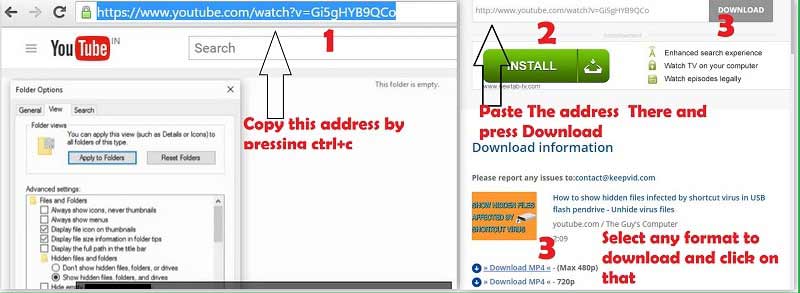
KeepVid is the best and popular website among the people to download their favourite video for offline purpose. Even KeepVid just not only can be used to download from the second largest search engine, but you can get videos offline from Facebook, Twitch, Dailymotion and many more. For downloading a video first you need to copy video URL from youtube and then paste it on KeepVid where it is asked and after that press 'Download'. You will get some resolution options like 480p or 720p. Just click on any of them and your video for offline download will start. You can visit KeepVid from donwloading YouTube video.

Download Youtube Videos from KeepVid (youtube offline download)
Download Youtube Videos from KeepVid
  
Clipconverter

Clipconverter is another online youtube downloader(site to download youtube videos) which also give you more control over the downloaded video by converting them online to various formats like 3GP, Mp4, AVI, MOV. Also if you just want a song not the video then here you will get an option to download in mp3, aac audio format. To download any video or audio from a video just copy the url of the video as done earlier, and paste in clipconverter box and then after that select the format which you want and then hit download. And you can upload any video from your computer to get a mp3 version of the song in the video. You can download youtube videos without a software by visiting clipconverter.
Clip converter Site To download YouTube Video without software installation


Video DownloadHelper 

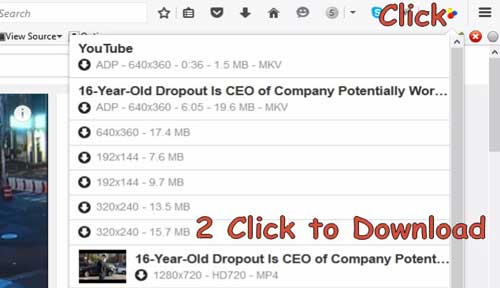
This video downloaderhelper is for the people who love to use Mozilla Firefox. It is an extension which you can easily add to your Mozilla and when you will visit YouTube next time just a look at the top right of your browser, you will see three circled (red, blue,yellow) icon, just click on that and it will show a list of options in various video format and resolution along with it you will be provided by the downloading details of that video.
Video Downloader Helper for Mozilla Firefox
Video Download Helper For MozillaFirefox

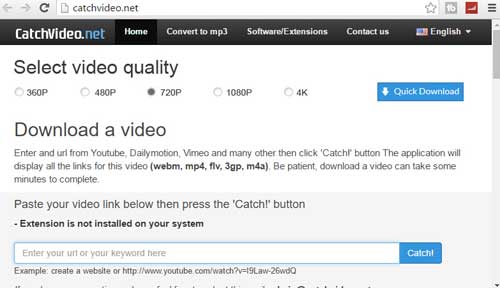
The other site to download youtube video is CatchVideo. It is a java based video downloader and you must have latest java with java enabled in your browser. This is very fast video downloader and also you willl get options to download in different format. Just put the url of the video which you want to enjoy offline and select video quality and hit Catch! and that's all. Your offline download will start. Visit CatchVideo to download video from youtube without any software installation
How to Download YouTube videos without any software using CatchVideo
CatchVideo to Download YouTube video without Software Installation


SaveFrom

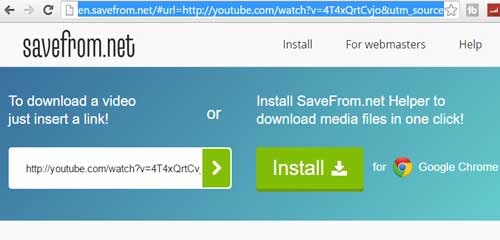
SaveFrom is a smart website to download youtube videos which just make your work all next to nothing. When you want to remove all hassle of copy and paste then this website is for you. To download video just put ss before youtube like as done in this url
"https://www.youtube.com/watch?v=4T4xQrtCvjo" "https://www.ssyoutube.com/watch?v=4T4xQrtCvjo"
Savefrom site to download youtube videos without any software download
SaveFrom site to download youtube videos
So these were the very few sites to download YouTube videos without any software installation. Now you can easily watch your favourite shows offline and  take it with you. Also if you are song lover then you can also convert your youtube video to audio using the website clipconverter

If you find this article on 'how to download youtube videos without software' useful then do not forget to give feedback in comments and do share it with your friends too. And Happy Learning. 


Thursday, 11 August 2016

How To Access Remote Desktop

Is your friend away from you and want help from you in his computer then you can easily connect to his remote pc,operate his computer and can help him. The remote connection is very helpful for technical support to remote people and is used in industries. So for connecting to a remote person there are few tools needed. Some are paid and some are free. And also windows have it's own tool for remote connection. So here is how you can connect to remote pc from windows remote assistance.

How To Connect to Remote Desktop

How to Access Remote Desktop Connection

To Connect to remote computer first you need to open Windows Utility 'RemoteApp and Desktop Connections'. 

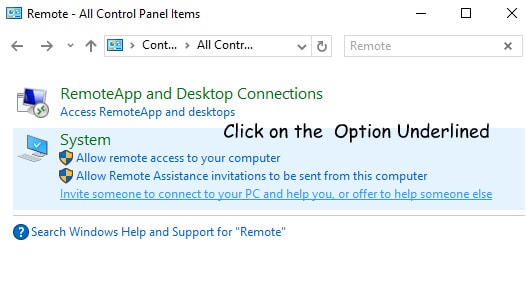
To access this Utility, first Go to 'Control Panel' and in the search bar of control panel type 'Remote'. After that You will see the results.
Remote Desktop Manager
Remote Desktop manager 


Now first of all you need to check the settings of your PC whether it is ready to accept the remote connection and invitations. For that Click on 'Allow remote access to your computer' and check 'Allow Remote Assistance connections to this computer' and also ask your friend to check these settings in his/her computer.
Remote Access desktop settings
Remote Desktop Access Settings


Now It's time to connect to his/her computer. To do that just look on the third line stating 'Invite someone to connect to your PC and help you, or offer to help someone else'and click on it.

Click to offer or invite for a remote desktop connection
Click to Invite or offer a desktop connection


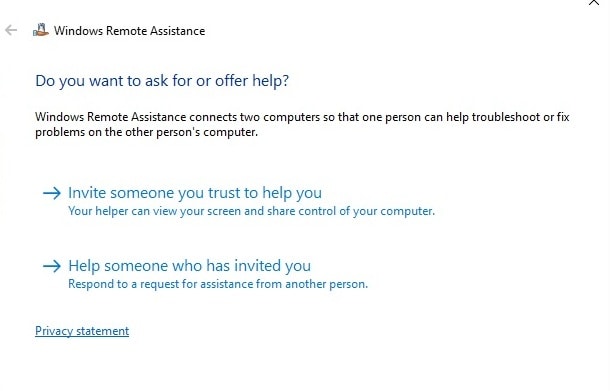
Now Windows Remote Assistance will open and will show two options for you.

Remote desktop manager for Remote Desktop Access
Remote Desktop manager 

Now if you choose 'Invite someone you trust to help you' then your computer will be controlled by your friend and if you choose 'Help someone who has invited you' then you are the helper and will control your friend's PC.

Steps to connect to remote PC if you want help from someone


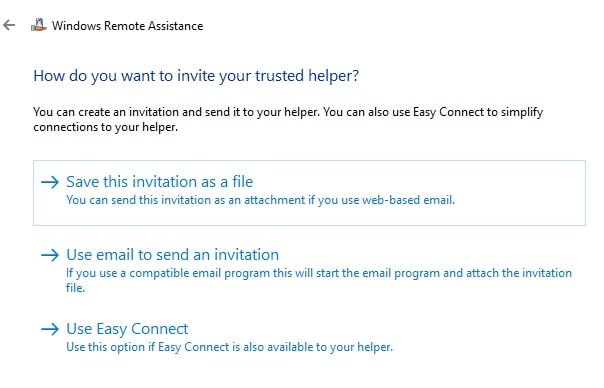
First Click on 'Invite someone you trust to help you'. And after that you will have three options on your screen.

Save this invitation as file
A file will be generated so that you can mail that file to your friend. And When he will click on that he will be able to connect to your computer.

Use email to send Invitation
If you have configured your windows mail, then select this option. However this also does the same as above one but in addition it just open your windows mail and automatically attach the remote connection invitation file.

Use Easy Connect 
The third option is 'Use Easy Connect'. If this option is available to your helper then you can click on it and the system will directly connect you to other person without any email hassle.

Remote Desktop Assistance Options
Remote Assistance Options


Now in my best practice if 'Use Easy Connect' is available then click on it and then it will create a key which you need to send to your friend. And also you friend need to click on 'Use Easy Connect' to enter the key. And then wait for the connection.
Easy Connect for remote Desktop Connection
Easy connect for remote desktop connection

Now other better and more simpler method is to generate an invitation file and send it to friend from online mail. For that Click on 'Save this invitation as a file' and then save that file to your desktop and the key will generated again and mail key and file to your friend. And as soon as he will open that file, and will enter the password generated, remote connection to your computer will automatically establish.
Invitation File Windows Remote Assistance

Now that's all the third option 'Use email to send invitation' is not a good option as it will then ask you to setup your windows mail. But if you have already have set your windows mail then it's a good choice for you. Still you need to send password generated. 


Steps to connect to Remote PC if you want to help someone

Now if you want to control your friend's PC then these options are for you. First you need to click on 'Invite someone to connect to your PC and help you, or offer to help someone else' and then you will get two options and click on 'Help someone who has invited you' and after that you will see two options 

Use an invitation file 
If you click on that, it will ask for the invitation file that your friend had sent you and after the you will click on that file then the system will ask for the remote password generated at your friend's pc.

Use Easy Connect

This option may or may not be accessible as sometime it is available or some time it is not. So in case you are luck then it will be there and after that when you will click on that, it will prompt for entering a password which has generated in your friend's computer. So if you haven't asked for that password, do it then to connect to his remote pc.
Remote Desktop Access Connect to other person's computer
Remote Desktop Access Connect to other person's computer 


Or if your friend had sent an invitation file then simple double click on that invitation file and it will ask for the password to connect to your friend's remote connection and as soon as you will put the password, you will be connected to your friend's remote desktop and will ask for the permission and as soon as he will allow it then you will be controlling your friend's PC.

Now Windows remote desktop connection manager give you some more simple options to communicate. You can chat to your friend using 'Chat' option present in windows remote assistance.

Software to Access Remote Desktop


So if you want to cut off all the above steps to connect to your friend's remote PC then there are a lot of software which can do this for you.  

Team Viewer is the best and full featured software best remote access software which is easy to install and use. It have some cool features like accessing the web browser of the remote pc, rebooting in safe mode and auto connect too. With team viewer you can talk directly to your friend by voice, video and also you can communicate with text messages. It has an amazing feature of sharing a particular app instead of sharing whole desktop. Also it can send files for printing to a remote printer. This software for remote desktop access is available in Windows, Mac and Linux also it is available in iOS, Blackberry, Android and Windows Phone. You can download TeamViewer to Access Remote Desktop.


Ammyy Admin remote desktop access
Ammyy admin is a very small and a portable remote desktop access program which is free to download. It's file size is just 750 KB which is fast to download. Also this remote access software doesn't require any installation. Just run it's exe file and you are ready to connect to your friend's remote computer. This have an awesome feature of transferring files to and from the remote computer. But Ammy admin is only supported on Windows and you can download and try this remote desktop access software.


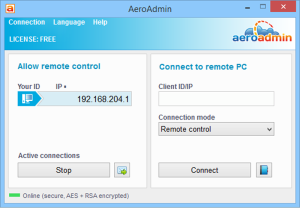
Aeroadmin remote desktop accessWith AeroAdmin's simple User interface you can easily connect to remote desktop in very few steps. It just require the IP address or ID of the other person to connect successfully. The major feature is that it is absolutely free for home and commercial use. So if you runs a tech support company, you can use it there too. AeroAdmin is supported by Windows only and you can use it to transfer files to the host computer. So you can get this remote desktop software for your home and commercial use.


Chrome Remote Desktop
If you are a google chrome user, then from it's large extension library Chrome remote desktop serve to access remote desktop. It require a google sign in and  you can easily see the name of other person. And this remote access extension works on the os running google chrome and you can download Chrome Remote Desktop for Android and PC 


So with these few best remote desktop software and inbuilt windows remote access software you can easily access remote desktop and can help or get help from your friend at the remote place. However make sure that you only accept connections from trusted person only as with the lot of features in these remote desktop software you can risk your files or privacy on your computer.

So wasn't that easy to Access Remote Desktop ?  
Tell your views in comments and share this post to your friends anywhere in the world. 


Hey, we've just launched a new account on Twitter You'll like to connect - https://twitter.com/theguyscomputer
Join Our Newsletter